Formative Feedback
1. Testing
Note: The following links have been disabled in the publicly available website for privacy reasons.
We conducted the usability test on Group 6’s prototype: EasyAsk, Zoom
built-in function that enables participants to better interact with
the presenter’s screen when they are showing a 3D object. Participants
are able to zoom in and out and point to specific places. Here is a
link to this group’s website for more information:
here!
To match the user population for which the design is intended, we
chose to test the prototype on 4 students. Every user had to complete
8 tasks and for each of these, they were not given any help unless
they requested it.
Ethics Consent Forms
Test Results Forms
Videos
Post-test Forms
Subject 1
| Task | Accomplished? | Observations |
|---|---|---|
| Open the video-conferencing platform | Yes | n/a |
| Join a meeting | No | The user created a new meeting instead of joining an existing one |
| Find the EasyAsk icon and use it | Yes | n/a |
| Open the queue and see at which position you’re at | Yes | n/a |
| Dequeue yourself | Yes | n/a |
| Zoom-in and out the image | Yes, with help | Initially, the image was not appearing so the user was confused. When explained that they had to click on their name to simulate “being next”, they accomplished the task without any problem. |
| Point to a position of your interest | Yes | The user could click on the button to point and the arrows appeared but could not move them (functionality missing in the prototype). |
| Exit the meeting | Yes | n/a |
Subject 2
| Task | Accomplished? | Observations |
|---|---|---|
| Open the video-conferencing platform | Yes | n/a |
| Join a meeting | Yes | n/a |
| Find the EasyAsk icon and use it | Yes | n/a |
| Open the queue and see at which position you’re at | Yes | n/a |
| Dequeue yourself | Yes, with help | Initially, the user had accidentally clicked on their name so the image displayed appeared and they could not dequeue themselves. When assisted by the evaluator, the user had no trouble dequeuing themselves. |
| Zoom-in and out the image | Yes | Since the user had accidentally clicked on their name on the previous task, they already knew how to make the image appear and had not trouble finding the zoom-in and zoom-out buttons. |
| Point to a position of your interest | Yes | The user could click on the button to point and the arrows appeared but could not move them (functionality missing in the prototype). |
| Exit the meeting | Yes | n/a |
Subject 3
| Task | Accomplished? | Observations |
|---|---|---|
| Open the video-conferencing platform | Yes | n/a |
| Join a meeting | Yes | n/a |
| Find the EasyAsk icon and use it | Yes | n/a |
| Open the queue and see at which position you’re at | Yes | n/a |
| Dequeue yourself | Yes | The user knew where to click but when clicking accidentally clicked on their name (instead of the cross) so this made the image appear as if it was their turn. |
| Zoom-in and out the image | No | Initially, the image was not appearing so the user tried to click on the buttons at the top-left of the screen. When the evaluator explained that they had to click on their name to be next, they performed the task without problem. |
| Point to a position of your interest | Yes | The user could click on the button to point and the arrows appeared but could not move them (functionality missing in the prototype). |
| Exit the meeting | Yes | n/a |
Subject 4
| Task | Accomplished? | Observations |
|---|---|---|
| Open the video-conferencing platform | Yes | n/a |
| Join a meeting | Yes | n/a |
| Find the EasyAsk icon and use it | Yes | n/a |
| Open the queue and see at which position you’re at | Yes, with help | The user did not click on the notification ‘You’re in the queue’ and tried to click again the EasyAsk icon. Since this was doing nothing, they requested the user manual again and then was able to accomplish the task. |
| Dequeue yourself | Yes | n/a |
| Zoom-in and out the image | No | The user was confused at first because the image to zoom-in does not appear unless you click on your name. The user requested the manual but still couldn’t figure it out until the evaluator explained that they had to click on their name to simulate “being next”. |
| Point to a position of your interest | Yes | The user had to look in the manual again; they could click on the button to point and the arrows appeared but could not move them (functionality missing in the prototype). |
| Exit the meeting | Yes | n/a |
2. Usability Evaluation
All members of our team completed the Usability Evaluation form: See the documents
3. Results and Analysis
For all test conducted, we obtained the following individual and average results from our test subjects.
Quantitative summaries
Time to complete
| Subject 1 | Subject 2 | Subject 3 | Subject 4 | Average | |
| Duration | 4:49 | 3:14 | 3:36 | 4:02 | 3:55 |
Completion rate of tasks
| Task | Subject 1 | Subject 2 | Subject 3 | Subject 4 | Average |
| #1. Open the video-conferencing platform | Completed | Completed | Completed | Completed | 4/4 |
| #2. Join a new meeting | Not completed | Completed | Completed | Completed | 3/4 |
| #3. Find the EasyAsk icon and use it | Completed | Completed | Completed | Completed | 4/4 |
| #4. Open the queue and see at which position you’re at | Completed | Completed | Completed | Completed with help | 3/4 |
| #5. Dequeue yourself | Completed | Completed with help | Completed | Completed | 3/4 |
| #6. Zoom-in and out the image | Completed with help | Completed | Not Completed | Not Completed | 1/4 |
| #7. Point to a position of your interest | Completed | Completed | Completed | Completed | 4/4 |
| #8. Exit the meeting | Completed | Completed | Completed | Completed | 4/4 |
Test results (Self-reported questions)
1 being strongly disagree and 10 being strongly agree
| Questions | Subject 1 | Subject 2 | Subject 3 | Subject 4 | Average |
| Q1. You felt like the system responded fast enough when using it | 8 | 10 | 7 | 10 | 8.75 |
| Q2.You would use the system in your every day life | 8 | 9 | 10 | 6 | 8.25 |
| Q3. You felt like you were having a conversation with another person | 9 | 8 | 1 | 1 | 4.75 |
| Q4. You believe this system could prove useful for your personal needs | 8 | 10 | 7 | 8 | 8.25 |
Post-test form
| Questions | Subject 1 | Subject 2 | Subject 3 | Subject 4 |
| Q. You find this prototype easy to use (1-5) | 5/5 | 4/5 | 5/5 | 5/5 |
| Q. Suggestions | n/a | I could not find the dequeue button easily. | n/a | n/a |
| Q. What features do you like about this prototype? | The application can usually find the best matching model or picture | The interface arrangement is clear and easy to follow |
-The interface arrangement is clear and easy to follow . -The application is handy and you use it quite often. -The application can usually find the best matching model or picture |
1 |
| Q. What features do you think should change in this prototype? | The arrows for pointing to specific places did not work | Add a button to go back when you make a mistake and want to undo an action | I find it useless to have to ask (put yourself in the queue) in order to be able to zoom in or out the image. | n/a |
Qualitative observations (with evidence)
| Tasks | Subject 1 | Subject 2 | Subject 3 | Subject 4 |
| #1. Open the video-conferencing platform | Straightforward | Straightforward | Straightforward | Straightforward |
| #2. Join a new meeting | The user created a new meeting instead of joining an existing one | Straightforward | Straightforward | Straightforward |
| #3. Find the EasyAsk icon and use it | Straightforward | Straightforward | Straightforward | Straightforward |
| #4. Open the queue and see at which position you’re at | Straightforward | Straightforward | Straightforward | The user did not click on the notification ‘You’re in the queue’ and tried to click again the EasyAsk icon. Since this was doing nothing, they requested the user manual again and then was able to accomplish the task. |
| #5. Dequeue yourself | Straightforward | Initially, the user had accidentally clicked on their name so the image displayed appeared and they could not dequeue themselves. When assisted by the evaluator, the user had no trouble dequeuing themselves. | The user knew where to click but when clicking accidentally clicked on their name (instead of the cross) so this made the image appear as if it was their turn. | Straightforward |
| #6. Zoom-in and out the image | Initially, the image was not appearing so the user was confused. When explained that they had to click on their name to simulate “being next”, they accomplished the task without problem. | Since the user had accidentally clicked on their name on the previous task, they already knew how to make the image appear and had no trouble finding the zoom-in and zoom-out buttons. | Initially, the image was not appearing so the user tried to click on the buttons at the top-left of the screen. When the evaluator explained that they had to click on their name to be next, they performed the task without problem. | The user was confused at first because the image to zoom-in does not appear unless you click on your name. The user requested the manual but still couldn’t figure it out until the evaluator explained that they had to click on their name to simulate “being next”. |
| #7. Point to a position of your interest | The user could click on the button to point and the arrows appeared but could not move them (functionality missing in the prototype). | The user could click on the button to point and the arrows appeared but could not move them (functionality missing in the prototype). | The user could click on the button to point and the arrows appeared but could not move them (functionality missing in the prototype). | The user had to look in the manual again; they could click on the button to point and the arrows appeared but could not move them (functionality missing in the prototype). |
| #8. Exit the meeting | Straightforward | Straightforward | Straightforward | Straightforward |
With these test results as well as with the feedback we received from the users, we have drawn several conclusions and critiques for this project. Here is an analysis of the core similarities and differences across all tests:
Similarities
- Difficulty to use the queue
- Agreed upon ease of use
- Agreed upon usefulness of the system
Differences
- One user automatically reverted back to the manual every time they were confused or unsure about how to accomplish a task
- One user mentioned the uselessness of the queue
Table of Issues
| Issues | Priority | Justification |
| Progressing prototype requires unnecessary clicks | High |
To be able to use the prototype effectively, many clicks were
required and unnecessary. For example all notifications (‘You’re
in the queue’, ‘You’re next’) had to be clicked on in order to
continue. This was confusing for subject 1 in task 4, subject 3 in
task 6 and subject 4 in tasks 4 and 6. The notification does not look like a button to be clicked on: 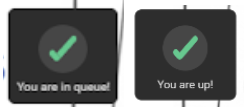
|
| Cursor functionality unimplemented | High | The cursor was not functional in the prototype. Although all testers were able to find it, none of them could move it and hence, test the design and provide feedback about it. Specifically, subject 1 mentioned this on their post-test questionnaire. |
| Unclear purpose and utility of queue | High | Subject 3 mentioned that they thought it was useless to have a queue in order to be able to zoom-in and out the image. If the zoomed image is available to everyone once a request is granted, it is trivial to have a queue, as everyone will be able to see the enlarged image at once. |
| Dequeue button too small | Med | When inspecting the queue, users are able to both click on their name (which puts them next in queue) or on the cross next to their name (to be dequeued). However, this leads to a lot of errors since the elements that can be clicked on are relatively small and next to each other. For example, it led to an error for subject 3, who instead of clicking precisely on the red cross, clicked next to it and was brought up to the next task automatically. Subject 2 also mentioned this in their feedback; for them, after clicking on their name to show which position they were at, they were unable to come back to dequeue themselves as their action had been interpreted as ‘being next’ on the queue. |
3. Test Plan Critique
In general, we found fundamental errors with the methodological approach that this test employed, which we will discuss in detail below. Firstly, the prototype was under developed for the uses of this test, with several crucial features missing. The testing materials too were underdeveloped and incomplete, as well as misunderstood the purpose of the test. Many of the tasks were too procedural and didn’t not capture how users would interact with the app on their own. The testing materials were vague and did not connect with standard heuristics. Furthermore, the interpretation of the heuristics by the group leads us to believe there are misunderstanding of the meaning and purpose of HCI heuristics. For all the above reasons, the test results are not reliable.
Critique of usability goals
In general, many of these usability goals measurements are not easy to assess nor reliable metrics by which to assess the goal. Furthermore, many of the goals here are not present at all in other testing materials nor test tasks.
Speaking specifically to each usability goals:
1. The functionality helps reduce confusion effectively.
-
Proposed measurement:
- Count how many questions posted about the object (especially about its shape) in the chat log and discussion board.
-
Problems:
- This was not implemented in the prototype
- No instructions/explanation of this feature was provided in the user docs
- There was no reference to this feature in the testing materials
- The definition of confusion should have been explicitly defined.
-
Modification:
- Re: “confusing”
- There are many ways to interpret “confusion”;It can be interpreted as frustration, disorientation and comprehension. If confusion means frustration in this context, the perceived level of frustration of each subject after the session could be assessed as a quantitative measurement. If it means disorientation, completion rate and time to completion of each task can be measured. Lastly, if it means one’s low comprehension level, comprehension questionnaires about the presentation can be completed by subjects.
- Re: measurement
- The lack of clarity about the confusion this app hopes to dispel makes providing a modification difficult.
- If confusion is about the object the presenter is showing, testing for this by Include a 3D effect in the prototype along with some questions for the users to answer might be one way to assess this goal
2. Users should have access to the EASYASK functionality easily.
-
Proposed measurement:
- Record the time that users stay at the UI to find the EASYASK button
-
Problems:
- This measurement is simply unclearly written
- Assessing functionality is more broad than just assessing the user’s ability to open the EASYASK tool.
-
Modification:
- Instead of recording the time that users take to open EASYASK, one could assess the time it takes to complete several tasks that related to each EASY function from start to finish.
3. Messages or instructions that are given by the system are easy to understand.
-
Proposed measurement:
- Record the time that users read each of the pop-up messages or instructions and reaction time once they finish reading.
-
Problems:
- It is difficult to assess how long a user takes to read something
- This measurement is simply unclearly written
- Time it took to read something does not measure understanding
-
Modification:
- Ask users in post test if they found the system easy to use and quickly understood its functionality
4. The system should not cause any disruptions to the users based on users’ preferences and situations
-
Proposed measurement:
- Number of elements that can be turned on/off. For example, mute button and silent mode.
-
Problems:
- The measurement is unclearly written
- This was not implemented in the prototype (Ex. it is not clear that participants adding themselves to the queue actually creates an notification sounds )
- This was not tested for in the test materials
- No instructions/explanation of this feature was provided in the user docs
-
Modification:
- As any notification should not be disruptive but informative, participants’ subject feedback about the notification can be gathered in a short interview as a qualitative measurement. The interview questions would be:
- Did you find the notification disruptive? Why
- Did you find the notification informative? Why
- What could be better about getting the notification?
5. The setup or installation should be simple
-
Proposed measurement:
- Record the total time that users need to finally start using the application, which includes downloading time, time of reading instructions and installation time.
-
Problems:
- This was not accounted for in the prototype
- This was not tested
- Time spent reading measurements is not a reliable metric to assess easy set up or installation
- No instructions/explanation of installation is provided in the user docs
-
Modification:
- Exclude this goal for now as it’s still a prototype
6. All audiences should be able to get such a visualization when a channel is open
-
Proposed measurement:
- None provided
-
Problems:
- This was not implemented in the prototype
- There is no measurement provided
-
Modification:
- The usability goal should have been redefined. Instead of simply checking whether an image is displayed on each participant’s screen, they could have assessed whether displaying an image on everyone’s screen is disruptive and gathered subject feedback from participants. The current usability goal is not testing usability but functionality.
Critiques with testing tasks, procedure, and prototype:
In general, many features that should have been tested were not included in the test, and features that were tested were implemented in a very limited way. Many important aspects of this tool that should have been tested were not tested. The testing procedures also left the evaluators and participants confused with the application. Specifically:
- Presenter version of the application was not tested
- This severely undermines the utility of this testing as one of the two core audiences of your application are not assessed at all
- We were considering doing such testing for you, but we found the prototype to be broken for the presenter view and literally no testing materials were developed for the presenter version. We could not afford to create such testing materials for this evaluation.
- Modification:create usability test materials for the presenter version.
- Core functionality of the application was not clear
- There was no concise or consistent definition of the core functionality of the application, including in the user documents. For example, new features of the application are discussed in different places. At the very end of the deliverable, the usability heuristics mentions “Once a visualization of an object is generated, everyone in the meeting should receive that image since others might have the same confusion or they just want to have a better view of it.” This is mentioned literally nowhere else in the deliverable, or user documents, or testing documents and adds more confusion to the purpose of the application.
- We were considering doing such testing for you, but we found the prototype to be broken for the presenter view and literally no testing materials were developed for the presenter version. We could not afford to create such testing materials for this evaluation.
- Modification: State clearly the object of the application.
- Presenter version of the application was not tested
- This severely undermines the utility of this testing as one of the two core audiences of your application are not assessed at all
- We were considering doing such testing for you, but we found the prototype to be broken for the presenter view and literally no testing materials were developed for the presenter version. We could not afford to create such testing materials for this evaluation.
- Modification: create usability test materials for the presenter version.
- Changes in design evolution were not tested
- Design evolution notes “Now, no pop-up messages for presenters to accept or decline a request. Alternatively, presenters can check a request list.” This should have been tested. Instead, testers were told to check the list
- Concern is, what if the presenter never notices the easyask queue and completely forgets about it? There were no visual indications of ppl entering the queue! This could be a serious design flaw that is not tested
- Modification:Make targeted tasks and assessments for the changes in the design evolution.
- No 3D object was used in the assessment
- This diminishes the value of the testing as zooming in on or manipulating a 3D object is very different than a 2d object!
- We understand it might not be feasible to truly embed a 3D object in a prototype. But at the very least an effort could be made to simulate rotating an 3rd object just using a handful of 2d images. Instead, cursor button wasn’t even hooked up to any functionality.
- Modification: Implement the “move image using cursor” feature in the prototype. If you are aiming to use this feature with 3D models, give the illusion of a 3D model by having several 2D images of the same object from different perspectives to give a feel for this feature. .
- Usability evaluation was the same as the user tests
- There didn’t seem to be a test result sheet for the evaluators to use. The “usability evaluation” read much like the “post test questionnaire” asking for personal sentiments like “I feel like I was able to…”. It was not immediately clear who was supposed to fill out this questionnaire. We chose to ask the participant these questions as it made more sense, but seemed to overlap significantly with the post test questionnaire
- Modification: make a data collection sheet for the evaluators
- Test script and tasks largely do not align with usability goals or heuristics
- The tasks presented to the testers were very specific and do not provide an accurate assessment of the applications utility. Many of the tasks were too targeted like “click on the EASYASK icon” then “click on queue yourself”. This means test results are really testing a user’s ability to follow simple instructions instead of testing their ability to use your application more broadly.
- Modification: change test task to be more general, such as: add yourself to the question queue, dequeue yourself from the question queue, manipulate the image to gain a better understanding of it and answer a question about the object
Critique of usability evaluation :
In general the usability evaluation is not captured in the testing process and many of the usability heuristics seem deeply misunderstood. Furthermore, many of the usability evaluations contradict or are misaligned with the usability goals stated earlier. Crucially, the usability evaluation does not include metrics by which to assess each usability goal in this section. For example, there is no clear relationship between post-test questionnaire and the usability evaluations. Usability goals also do not clearly align with Nielsen’s 10 heuristics.
The following list will specifically analyze each usability evaluation:
- Match between system and the real world
- The evaluation asks users if they felt like they were “talking to a robot”. This question does not address the usability heuristic specified by Nielsen.
- What is meant by “match with the real world” in this context might be the “real world” experience of seeing an object in a class and being able to touch/move it around.
- User control and freedom
-
Again, this point seems misinterpreted. The user control and
freedom refers more to the ability for the user to undo/redo their
work or easily exit the application at any time.
It should be noted that users would have like this option, like this comment from the post test: “Add a button to go back when you make a mistake and want to undo an action.” - It is a basic assumption that users have the freedom to use or not use an application of their choosing. Furthermore, user control does not refer to the application controlling other parts of the system (as if should be assumed any applications should not unnecessarily interfere with other processes on a device).
- I don’t think this usability goal is addressed in this application and this heuristic should be removed (barring changes to the application)
- Flexibility and efficiency of use
- This heuristic is misinterpreted. Flexibility and efficiencies refer to accelerators, the ability to do common uses quickly, like copy and paste shortcuts.
- This application does not include this heuristic.
- The system interface should be “intuitive”
- This is not a usability heuristic as defined by Nielsen and using “intuitive” in your heuristic is highly discouraged among HCI professionals.
- The description provided of this heuristic sounds more in line with the “aesthetic and minimalist design” heuristic as defined by Nielsen. Simply changing the title of this heuristic would suffice.
- The system should create more interactions between presenters and users:
- This is great and central to your application.
- This should have been tested though. It would have been fruitful to see if users felt this application facilitated interactions between users. A question evaluating this might be: “Did this application help you interact with others?”
- All audiences should be able to get such a visualization when a channel is open
- This is not a heuristic. This is a feature or function.
- This should be removed.
4. Design Critique
A few improvements could be implemented in order to have a better design.
First, there are the pop ups which inform the user that they are in the queue and that they’re up next. However, these pop ups must be clicked on in order for the application to proceed, which caused considerable confusion in our tests. Subject 4 added themselves to the queue and saw the feedback from the system, but didn’t click on the check mark because they assumed that it was a notification. The evaluator had to let the testing user know that they had to click on the pop up to proceed. This additional interaction could be removed as it is not necessary for the functionality of the system and it confused the users. The pop up could simply be dismissed automatically as a notification after a couple of seconds.
Another observation made by the users is the concept of a queue in order to interact and move the model. Subject 3 stated that they didn’t understand why they had to be waiting in line to be able to zoom on the model. They commented that they would not actually use the system if they had to wait in a queue in order to manipulate the model. There was also a lot of confusion around what the model that the user would be able to interact with was. The early proposed solution was to zoom into the presenter’s webcam but there was also mention of 2D/3D objects. Subject 3 also was unsure whether they were zooming in on an image or a slide.
Allowing multiple users to interact with the model at once and removing the queue could potentially improve the usability of your product as you don’t need to have extra steps before the system allows you to view the model. It was unclear to us whether the interactions by the participants with the model were shared with the whole meeting or each participant was interacting with it individually. Removing the queue and the authorization from the host would especially make sense if each participant is able to move around and zoom in and out in their own interface. If the viewing of the model is shared with all the participants on the video conferencing call, it might be interesting to have two modes: one personal and one shared. This way, people who do not have questions on the model can still interact with it to get a better glimpse of the details without waiting for their turn and affecting the other participants in the call.
While testing with Subjects 1 and 4, but also in the usability evaluation, we observed that users were confused with the flow of your system when it is their turn to interact with the model. Users did not understand why they had to click on their names to activate their turn and this action was also error prone. Subject 3 clicked on their name instead of the ❌ symbol and they weren’t able to dequeue themselves. Instead, their turn was activated. The system should automatically notify the user when it is their turn, if this feature is necessary. Instead of displaying a popup with “You’re up next” and wait for the user to click on the checkmark, you can let them know instead with a notification that the system is setting up the model for them to interact with it to limit the number of clicks before the participant can finally manipulate the object.
The pointer design caused confusion to all users as they were not able to interact with it in the computer prototype. It was difficult to understand what the black and the red pointing arrows meant, was it used to move around the model or to point to a given area of the 3D model in order to ask a question? A clearer interface would be beneficial for users to understand what the features entail. In your documentation you indicate that the users should have the flexibility to zoom in on a specific area of the model, but that concept was not incorporated into the prototype. Adding a way to specify where the user wants to zoom in and out of would help them better interact with the model as well as a way to navigate around the displayed area such as panning for 2D objects but also rotating for 3D objects.